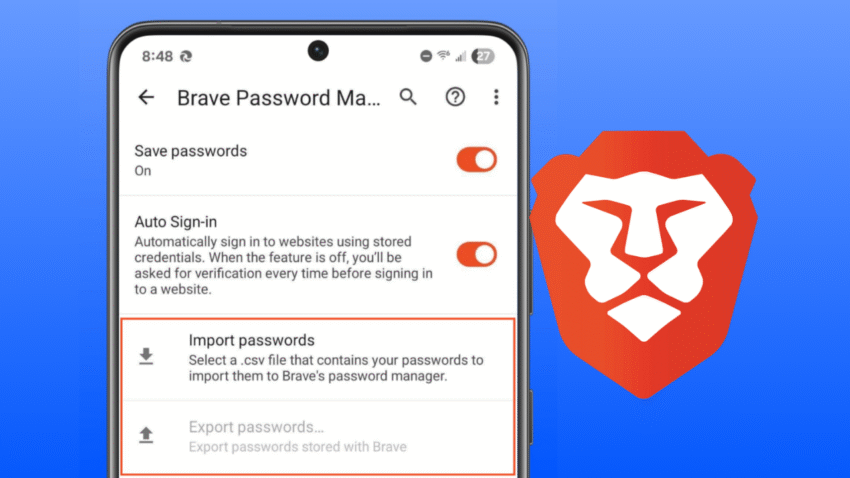
The Brave browser for Android phones just rolled out two new features that make it much easier to use, especially if you’re new to the browser or just like things set up your way.
In short, you can now:
- Easily move all your saved passwords from another browser (like Chrome or Firefox) into Brave using a single file.
- Change the main menu to put your favorite tools front and center.
Let’s break down what these features are and why they matter in simple terms.
1. Easily Move Your Passwords to Brave (with a CSV file)
CSV password importing makes it easier to bring all your passwords over from your old browser. 🔖
— Brave (@brave) November 3, 2025
Set it up at Settings > Brave Password Manager! pic.twitter.com/8xTG8HGlyx
What it is: Think of all the usernames and passwords you have saved in your old web browser. Moving them to a new browser one by one is a huge pain. This new update lets you “import” them all at once.
How it works (and what a “CSV file” is): Almost every browser (like Google Chrome, Firefox, or Safari) has an option in its settings to “export” or “save” all your passwords into a single, simple file. This file is usually called a CSV (Comma-Separated Values) file.
Don’t let the name scare you. A CSV file is just a basic spreadsheet, like a simple list that can be read by almost any program.
With this new update, you can now:
- Go to your old browser (on your computer or phone) and find the setting to “Export passwords.” This will save that CSV file.
- Get that file onto your Android phone (by emailing it to yourself, using Google Drive, or connecting via a USB cable).
- Open your Brave browser on Android, go to Settings > Brave Password Manager, and tap the new “Import passwords” option.
- Select the CSV file you saved, and… that’s it! All your old passwords are now in Brave, ready to use.
Why it matters: This is a huge time-saver. Before, getting your passwords into Brave on your phone was a difficult process. This feature makes switching to Brave from another browser incredibly simple and fast.
2. Customize Your Main Menu
Don't want some of the buttons in the main menu? Now you can quickly hide them!⚙️
— Brave (@brave) November 3, 2025
Just click the “Customize menu” option in the hamburger menu to get started. pic.twitter.com/7ybRwyOGZO
What it is: The “main menu” is the little button you tap to get to all your browser options—it usually looks like three dots (⋮) in the corner of the screen. This menu has buttons for your “Bookmarks,” “History,” “Downloads,” “Settings,” and more.
This new update lets you change which buttons appear in that menu and what order they are in.
Why it matters: This feature is all about making the browser work faster for you.
Maybe you use your “Bookmarks” all the time but never look at your “History.” You can now move the Bookmarks button to the top of the list so it’s the first thing you see. You can also hide the buttons you never use, making the menu cleaner and less cluttered.
It lets you personalize the browser to fit your habits, so you can get to your most-used tools with fewer taps.